To remove a price sticker from a product photo without Photoshop, start with automatic detection, switch to a precise brush mask near product edges, and verify that the product itself remains unchanged. This works for a price sticker visible in an authorized image, whether it is a digital sale graphic or a photographed paper label. The editor changes pixels in the photo; it does not physically remove adhesive from an object.
Use this process only for images you own or are authorized to edit. Do not remove manufacturer marks, copyright attribution, or information that buyers need to understand the product accurately.
This page is specifically about removing a visible price sticker from product-photo pixels. For the cost of using RemoveStickerFromPhoto, visit the Pricing page. For non-product overlays, follow the broader sticker-removal tutorial. These are separate search intents: editing a photographed price label is not the same as checking the editor's credit price.
Synthetic price sticker removal example
The following pair is an editorial demonstration created with synthetic imagery. It is not a customer upload, a measured product benchmark, or proof that every price sticker will produce the same result.
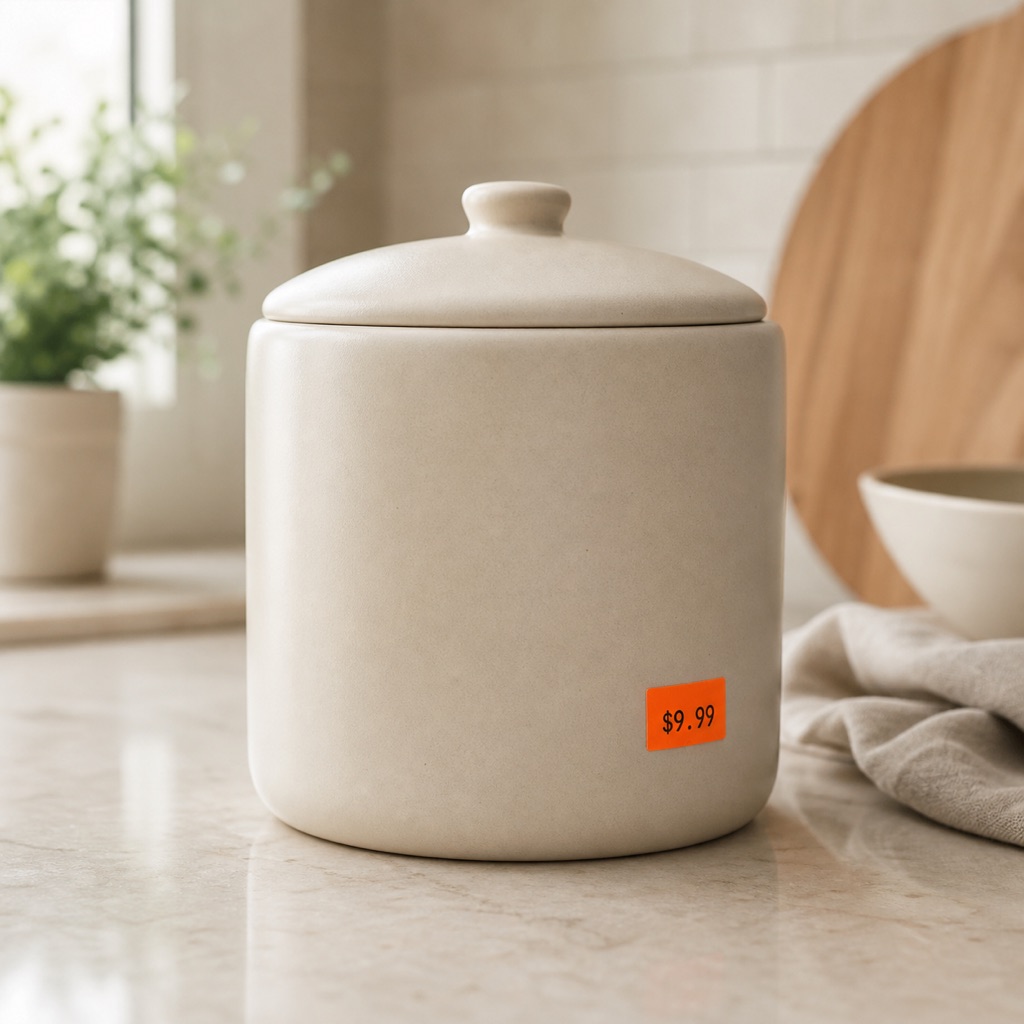
Before: a synthetic, unbranded product photo with one clearly isolated price sticker.

Illustrative edit: the price-sticker area was removed and replaced with a plausible ceramic texture. Small texture differences remain possible because this is reconstruction, not recovery.
This is a favorable case because the sticker is small, isolated, and surrounded by a predictable matte surface. A price sticker crossing package text, a seam, a reflection, or a unique pattern would require a tighter mask and more careful review.
What price stickers and digital labels can be removed from product photos?
- Decorative stickers added for a temporary campaign
- Pasted-on sale labels that are no longer current
- Reaction graphics or emojis added to a social version
- A digital caption or timestamp that is not part of the physical product
- An accidental flat overlay in an authorized marketing asset
- A photographed paper price sticker when surrounding packaging detail is visible
It is not a tool for changing the identity, condition, safety information, or authenticity of a product.
How to remove price stickers from product photos
Step 1: Keep the original product image
Save an untouched copy before editing. AI output is a reconstruction, not a recovery of pixels hidden by the label.
Step 2: Upload a high-quality product photo
Open RemoveStickerFromPhoto and upload a JPG, PNG, or WebP image up to 10 MB. An original export is better than a repeatedly compressed screenshot.
Step 3: Try RemoveStickerFromPhoto Auto Detect
Automatic mode is efficient when the price sticker or digital label is visually separate from the product and background. A high-contrast rectangular price tag on plain packaging is a stronger candidate than a label crossing detailed typography. Treat the first output as a preview to evaluate.
Step 4: Use Brush Area near product edges
If the price sticker touches packaging, a seam, typography, a reflection, or a product contour, paint only the sticker and its visible edge. The manual mask defines the area requested for reconstruction. A tight mask reduces the amount of packaging the model must invent.
Step 5: Run a product photo integrity review
| Review item | What to verify |
|---|---|
| Shape | Product outline and proportions are unchanged |
| Material | Texture and reflections remain believable |
| Typography | Legitimate package text is intact |
| Lighting | Highlights and shadows continue naturally |
| Background | Lines and surface patterns stay aligned |
Step 6: Compare and download the cleaned product image
Move the before-and-after divider across the full image, not only the edited patch. Download the result only when surrounding content remains consistent.
Why product teams use a focused AI label remover
The interface focuses on one task: upload, choose automatic or brush control, inspect the result, and download. It does not require users to manage layers, model settings, or a complex tool palette. Each task currently costs 4 credits, displayed before processing.
Product photo label removal FAQ
Can AI remove a paper price sticker shown on a product?
It can attempt to remove the sticker from the photo when enough surrounding color, texture, and geometry remain visible. The result is a plausible reconstruction, not a scan of the packaging that originally sat underneath the paper label.
How do I remove actual price sticker residue from an object?
This site cannot remove a physical sticker or adhesive. It only edits the pixels in an image. Follow the product manufacturer's cleaning guidance for the real object, especially for coated paper, electronics, leather, painted surfaces, or delicate finishes.
Can I remove a real brand logo from a product?
Only edit content when you have the legal and contractual right to do so. Do not use the tool to misrepresent product identity or remove legitimate attribution.
What if the label covers important product detail?
The model can only create a plausible replacement from visible context. If the exact detail matters, use an original photo without the label.
Editorial and product disclosure
This tutorial was written by the RemoveStickerFromPhoto Editorial Team. We verified the automatic, brush, comparison, and pricing flows against the current product on August 10, 2026, and added the clearly labeled synthetic before-and-after demonstration on September 1, 2026. We operate the tool linked above.